
Creating Annotated PGN Files Using Study Features In Lichess
This post describes how manually entered moves on record sheet, when playing over the board, can be transferred to Lichess study to create annotated pgn files.Using Study Analysis In Lichess To Create Annotated PGN File
by Subas Subbaraj
October 2021
Contents
1 Introduction.
2 Process Description.
2.1 Login into Lichess website.
2.2 Choose “Analysis board”.
2.3 Move your chess pieces on the Chess board.
2.4 Choose “Study” from the 3 bars menu.
2.5 Request computer analysis.
2.6 Select “STUDY PGN” to download annotated pgn file.
3 Conclusion.
1 Introduction
During the Covid-19 crisis some of us chose to play online for the league and internal competitions. Most of the online games were played on the website hosted by Lichess. As a game is played the moves are automatically entered by the website system for the players. When the game is finished the players could quickly use the chess engine to analyse their games. This is quite different to playing over the board chess games.
If a game is played over the board and the moves manually recorded on a record sheet the players may wish to analyse their game after it is over. This document provides information on how to start from a manually recorded sheet to the finished product, a pgn file with an annotated analysis by the chess engine (Stockfish) on Lichess. It is possible most of the players are already aware of the processes. This document is addressed to those players who are not.
Please note Lichess is only one avenue to help produce an annotated pgn file from a game. There are others like Fritz and ChessBase which may do something similar. This document may provide the help to players whose options are restricted in choosing the right analysis tool. Lichess is open source and free and is available to any registered user.
Following is the overview of the processes involved :
· Login into Lichess website
· Choose “Analysis Board” under Tools
· Move your chess pieces on the Chess board in the order based on your record sheet
· After the last move entry choose “Study” from the 3 bars menu
· Click on Computer Analysis icon and then request computer analysis
· Click on the share icon and select “STUDY PGN” to download annotated pgn file.
I have used my computer to illustrate the processes. I tend to use the dark theme as it appears to be easier on my eye. Hopefully that is not a distraction to following the document contents.
2 Process Description
2.1 Login into Lichess website
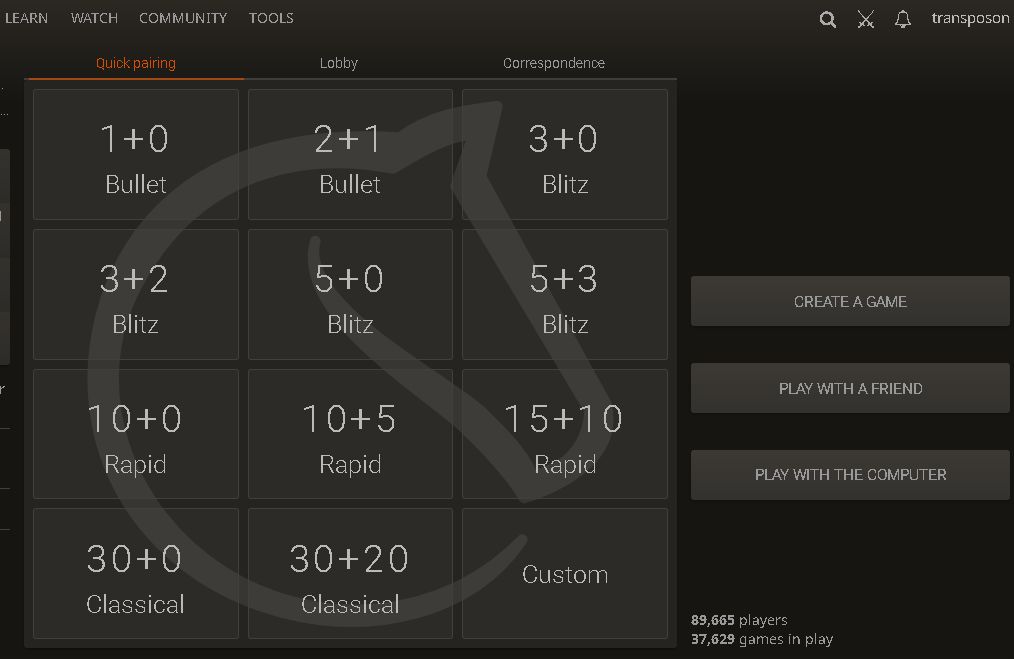
I am using my Login id to illustrate.
2.2 Choose “Analysis board”
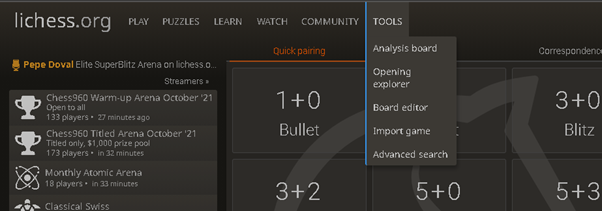
If you click on the Tools menu option, or hover over the Tools menu option and select Analysis Board you will be taken to the page with the analysis chess board.
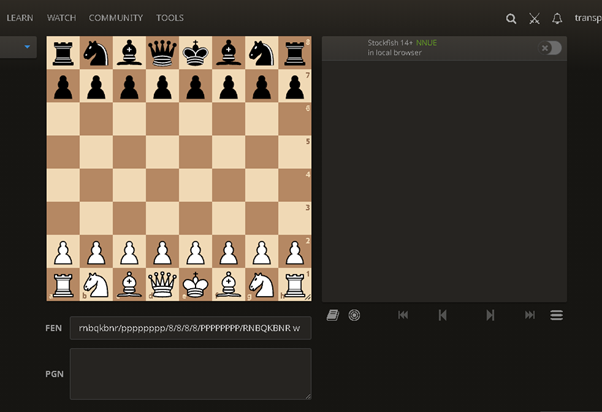
Analysis Chess Board:
2.3 Move your chess pieces on the Chess board
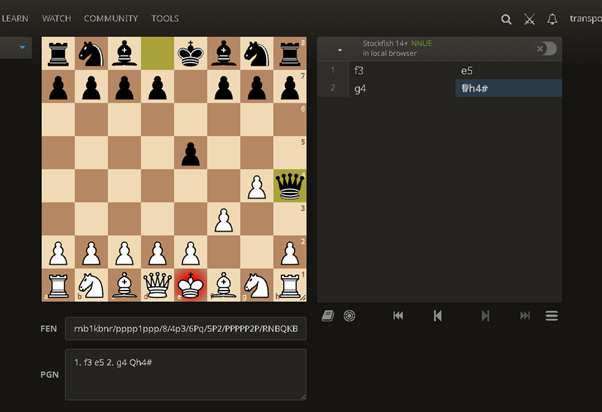
Move the chess pieces in order, to the correct location on chess board as specified in the record sheet. To illustrate this process I am using the example of “Fool’s Mate” game. Let’s say the entry on the record sheet looks something like this:
1. f3 e5
2. g4 Qh4 (checkmate; Black wins)
The Analysis Chess Board will show the moves like this:
At this stage you may want to highlight and copy the moves in the “PGN” box to a text file of your choice. The reason for this is after all the hard work of making the moves, the last thing you want is to lose them if you inadvertently select the wrong menu options or do a web page refresh. If you had saved them, you can copy and paste the moves back in the “PGN” box on an empty Analysis Board to restore your original configuration of the board.
You may also want to share the saved text file with someone else or use it in another application. To be recognised as a standalone pgn file the text file should have .pgn extension and the appropriate header entries. Using the example of the moves above in the image the pgn file should have the following as minimum:
[Event ""]
[Site ""]
[Date ""]
[Round ""]
[White ""]
[Black ""]
[Result "0-1"]
1. f3 e5 2. g4 Qh4 0-1
Based on the outcome of the game “Result” tab can have one of the following values:
· 1-0 for a win for white
· 0-1 for a loss for white
· 1/2-1/2 for a draw
Make sure the “Result” tab value is identical to the value entered after the last move.
The Wikipedia site url link, https://en.wikipedia.org/wiki/Portable_Game_Notation, gives more detail.
2.4 Choose “Study” from the 3 bars menu
After you have made the last move from your recorded sheet you will have to choose the “study” option. On the bottom of the pane to the right of the board, close to the interactive “move” arrows, there is a 3 bars menu (burger menu) icon When you click on this menu you will be able to see “Study” as one of the options. See image below. Click on “Study” option
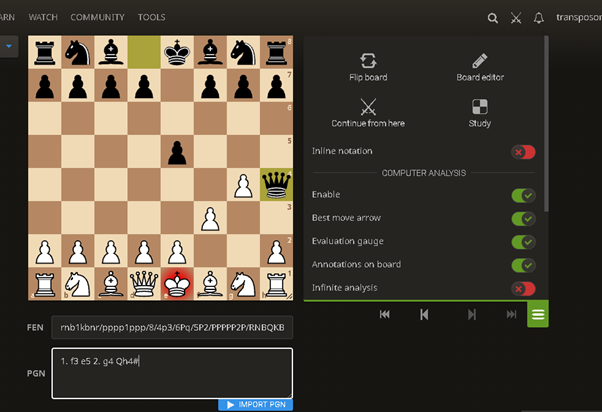
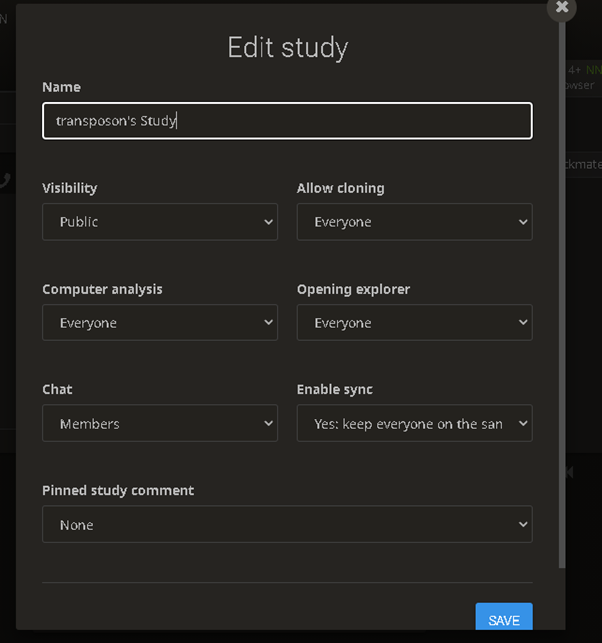
When you click on “Study” option you will end up on the study screen asking whether you want to create study. Click on “Create Study”.

When you click on “Create Study” you will be provided with the “Edit Study” form. Make the appropriate selections based on your preference and click on “Save”. If you already have a study under your nickname you can choose that by default or create a new name.
2.5 Request computer analysis
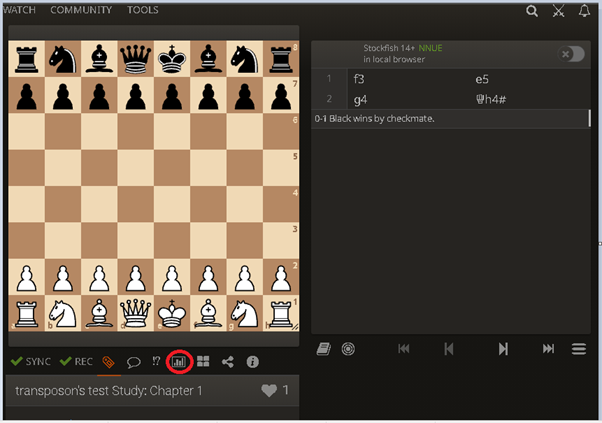
When you have created/or chosen the study you will finally be presented with a study board in the study page. You will notice that the moves are still there on the pane on the right of the chess board.
I have circled the computer analysis icon in red in the image below. Click on that icon.
On clicking the Computer Analysis icon you will be given the option “REQUEST A COMPUTER ANALYSIS” in a drop-down box. Choose that option to start the analysis.
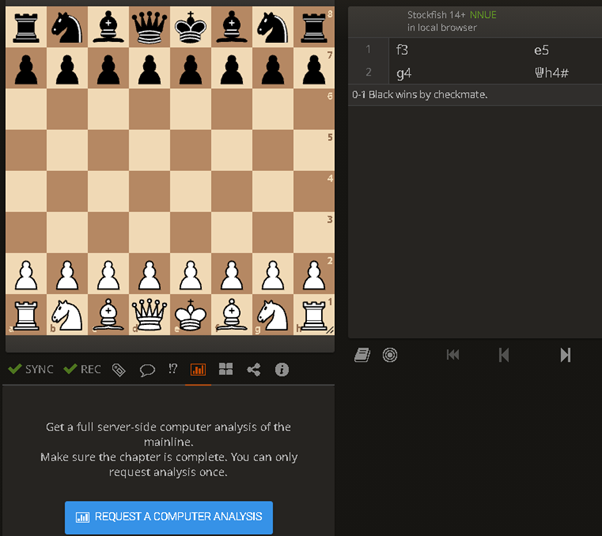
The resulting analysis page will look something like the following image dependent on the nature of the game.
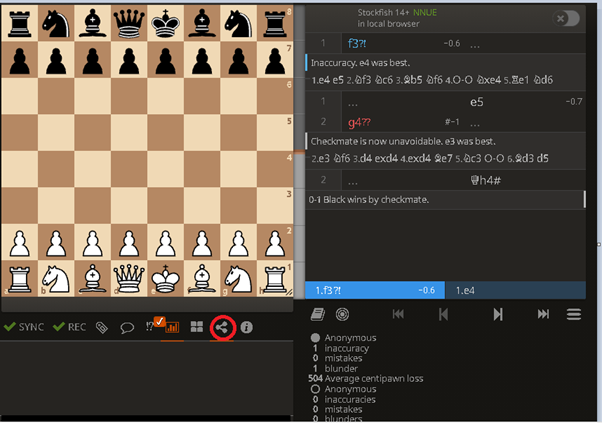
You can of course add your own comments and annotate with glyphs. I will leave that to you to experiment. There is the final stage which will be the final product, the annotated pgn file.
2.6 Select “STUDY PGN” to download annotated pgn file
Click on “Share & export” icon (circled in red in the image below)
Clicking on the share and export icon will give you a drop-down box with pgn file download options.
Choose “Study PGN” option to download the pgn file to your computer. See image below.
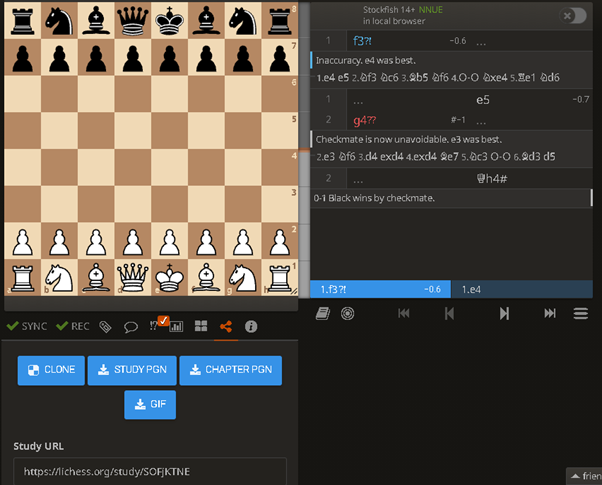
Make a note of the Study URL if you wish to revisit the study page in Lichess.
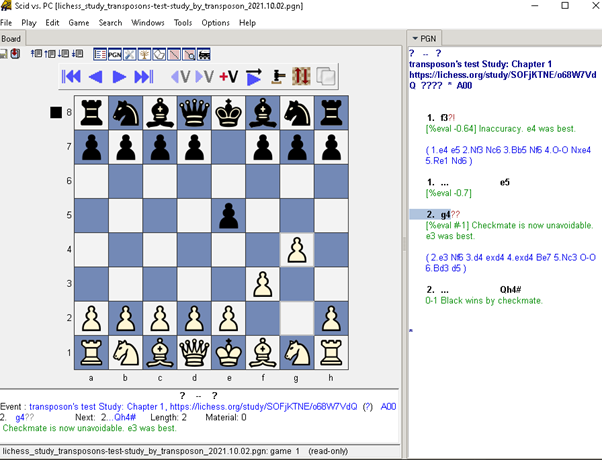
I was able to load the downloaded pgn file from Lichess into “Scid vs PC” application without any issue:
3 Conclusion
I hope I have been able to demonstrate it is not difficult to start from a manually recorded game sheet and end with a pgn file containing analysis and annotation provided by the chess engine in Lichess. You can of course provide your own comments/annotations before downloading the pgn file. The only tedious exercise I can see is the entry of the moves from the recorded sheet to the analysis board.
There are lot more features in the study analysis page. I am not familiar with most of them. In fact there are lot more features outside of study analysis Lichess offers, but again I am not familiar with most of them. In my opinion Lichess has lot to offer as a free service to the chess community.
I have tested the exercises on an android tablet and they work. It will be useful if someone can share their experiences going through these exercises. Perhaps they may have found a better way to achieve the same objective.
In conclusion I hope this document will encourage players in our clubs to explore more of their games as well as others, and hopefully improve their games. In some small way it may help players contribute to the content pages on their club websites with their analysed games.